How to use the Help Center and support widget in itrvl
Written By Itrvl Team
Last updated 3 months ago
Summary: Learn how to access itrvl's built-in Help Center and support widget to find help articles, chat with the Trivi AI agent, start live support conversations, and read product updates. The widget is available directly inside the itrvl app, and the full Help Center and Changelog are also accessible as standalone pages in your browser.
Also known as: help widget, support chat, knowledge base, help button, support bubble, chat widget, help center, FAQ, documentation, product updates, release notes, what's new, contact support, get help, find answers, Trivi, AI assistant, chatbot, virtual assistant
Prerequisites
You have an active itrvl account and are logged in
Overview
itrvl includes a built-in support widget powered by Featurebase. You can access help in two ways:
Inside itrvl using the support widget (the chat bubble in the bottom-right corner of your screen)
Outside itrvl by visiting the Help Center or Changelog directly in your browser
Using the Support Widget Inside itrvl
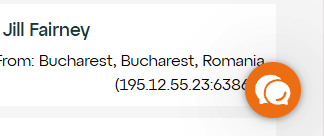
The support widget appears as a small chat bubble in the bottom-right corner of the itrvl interface. Click it to open the widget, which contains four tabs:
Home
Click the widget bubble in the bottom-right corner of itrvl.
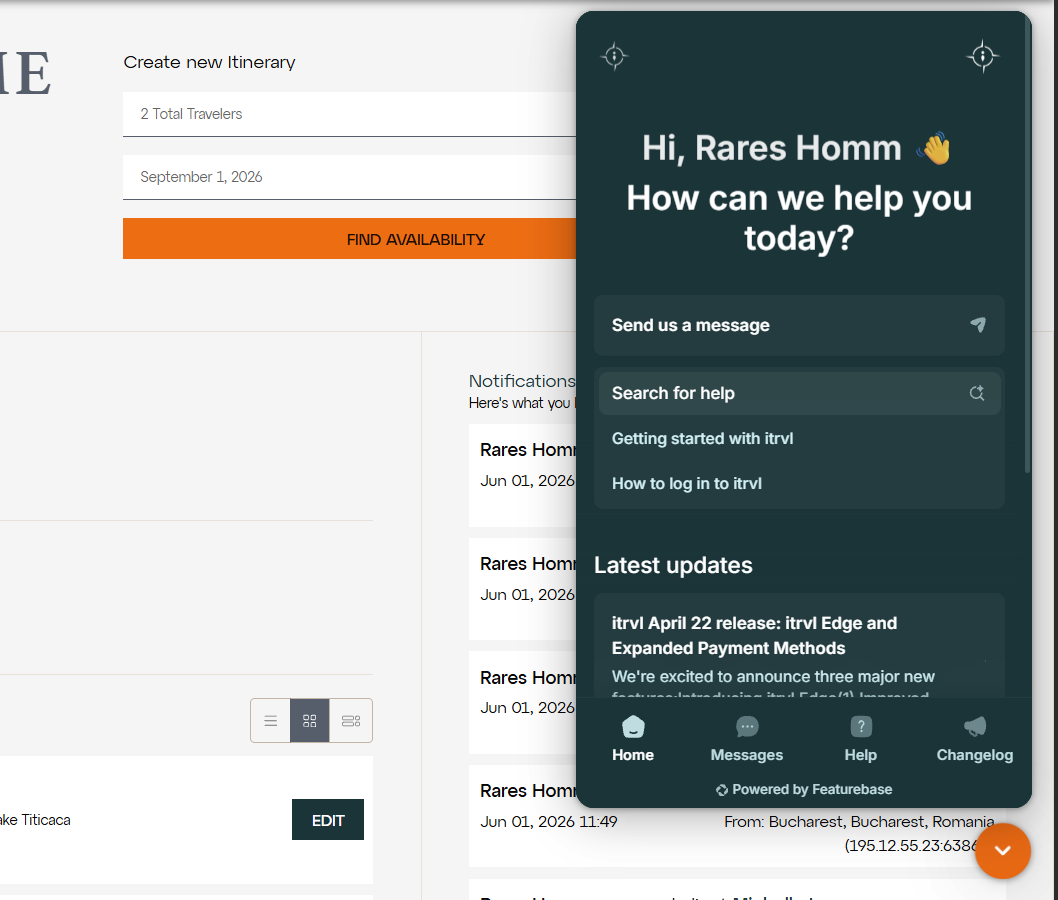
The widget opens to the Home tab by default. This is the welcome page, where you can see quick links, featured content, and a starting point for finding what you need.
Messages
Click the Messages tab to view and manage your support conversations. This is your central place for getting help directly from the itrvl team or from Trivi, itrvl's AI support agent.
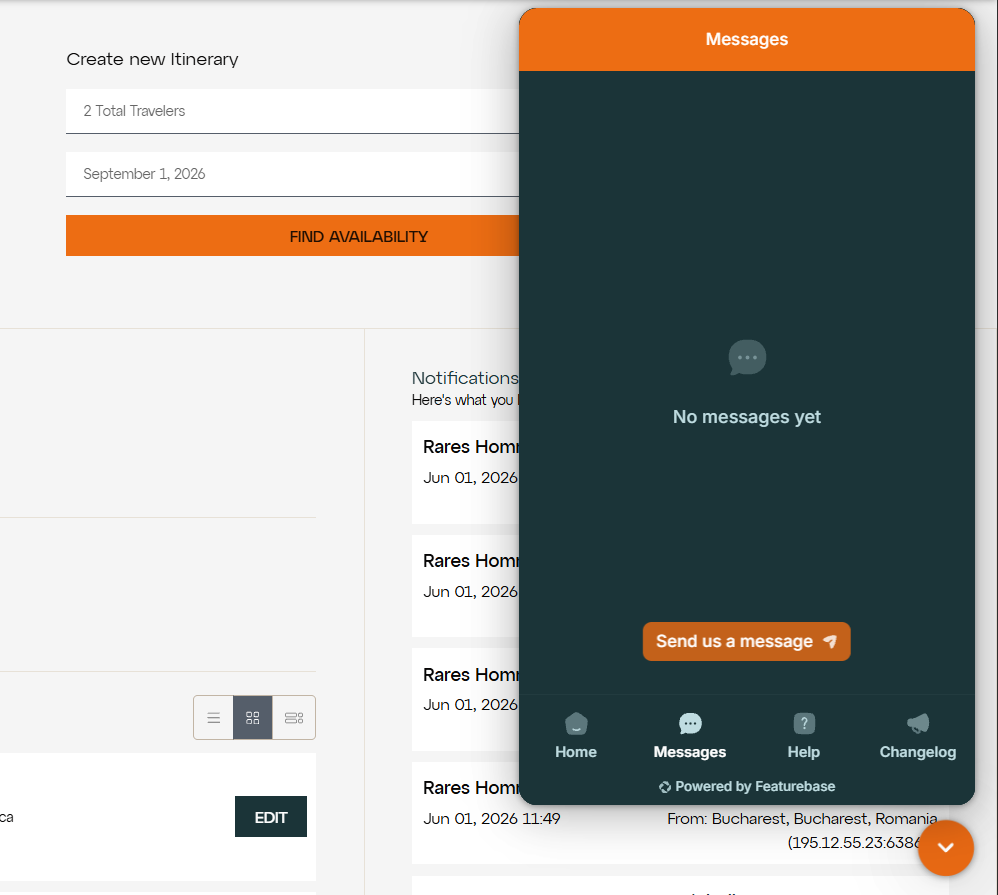
To start a new conversation, click the New Message button (or compose icon) and type your question.
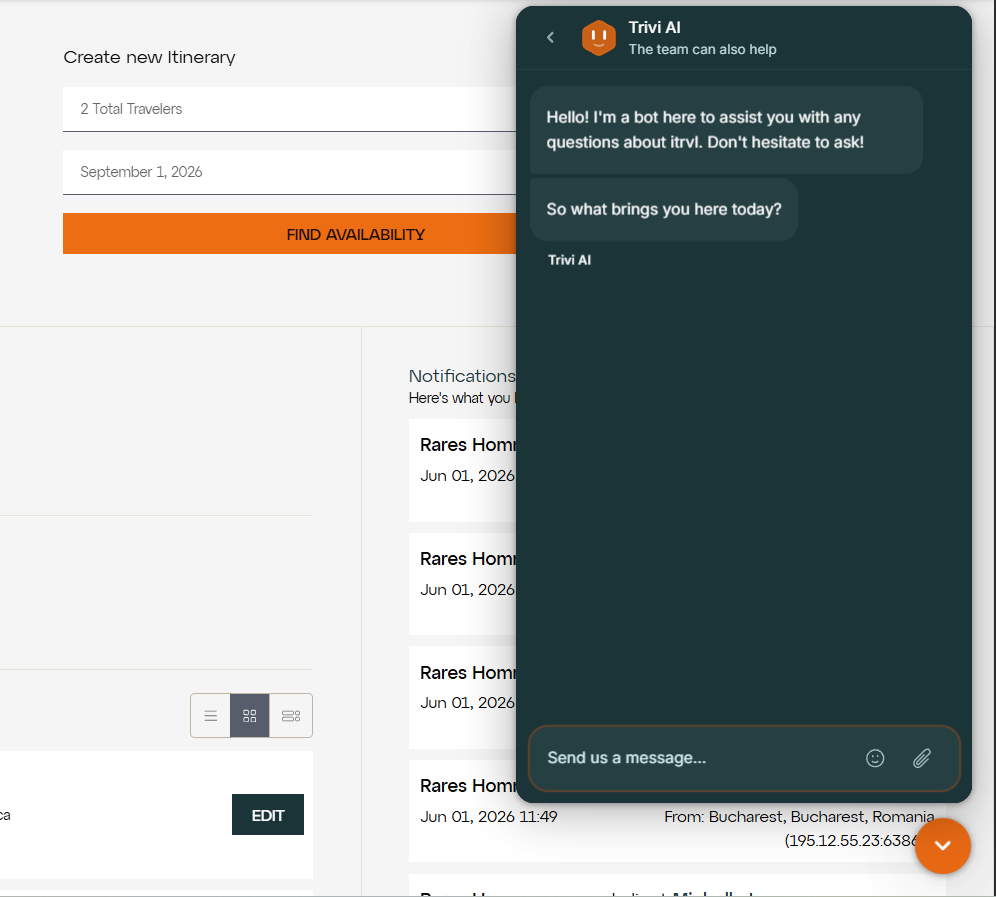
When you send a message, Trivi (itrvl's AI agent) will respond first. Trivi is trained on itrvl's support data, help articles, and product knowledge, so it can answer most common questions and walk you through solutions right away.
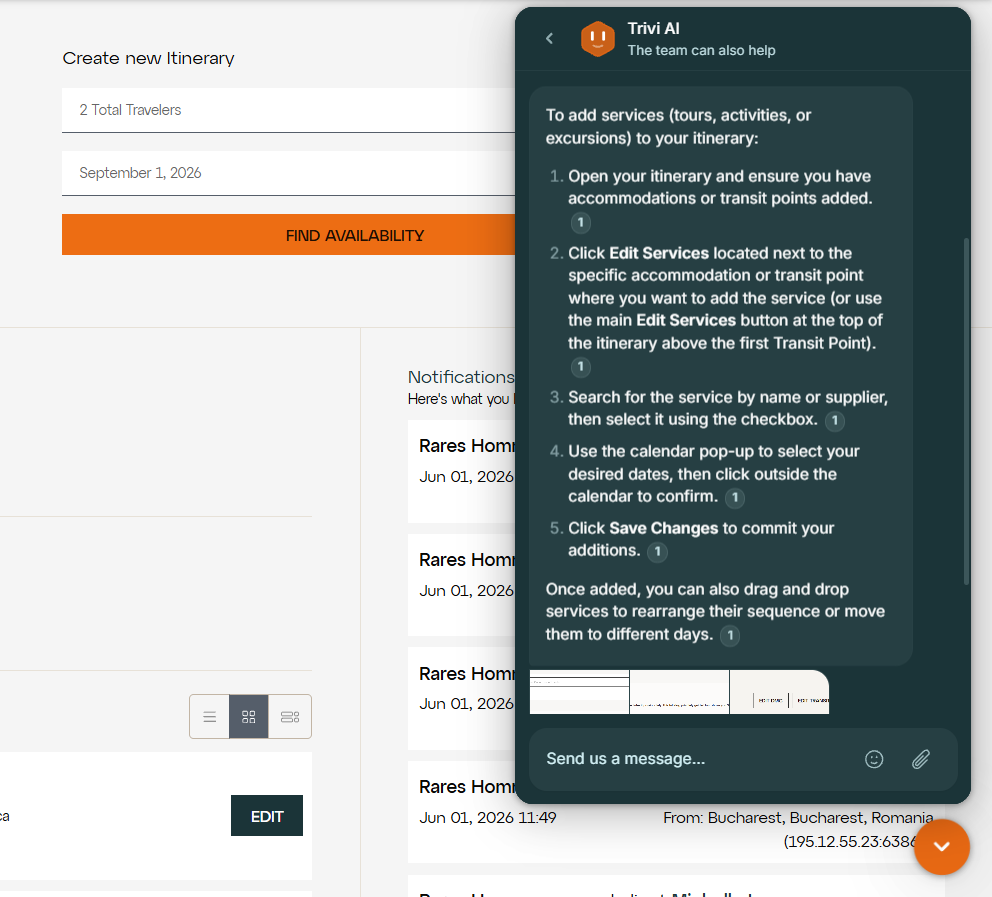
If Trivi cannot fully resolve your question, the conversation will be handed over to a member of the itrvl support team who will follow up directly in the same thread.
Tip: Try asking Trivi first before waiting for a human response. Trivi can handle a wide range of questions, from "how do I change my margin" to "what does Estimate status mean," and you will get an answer instantly.
All of your previous conversations are saved in the Messages tab. You can return at any time to check for replies or continue a conversation where you left off.
Help
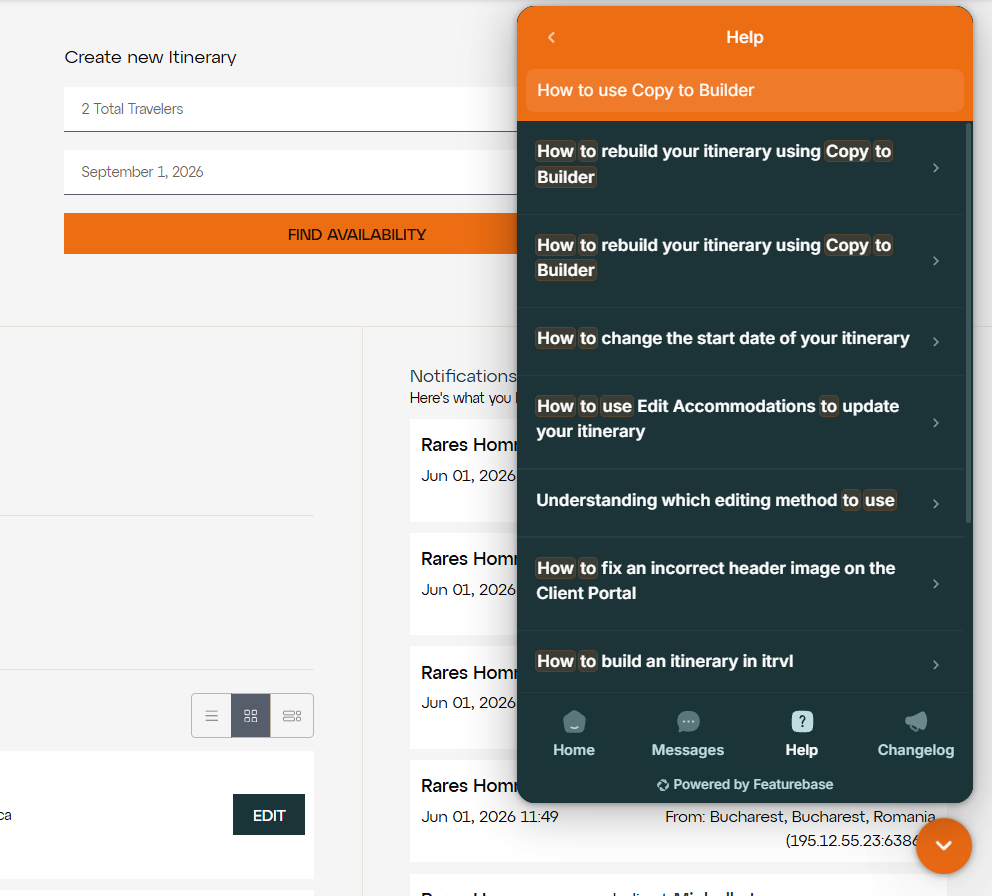
Click the Help tab to browse the full itrvl Help Center without leaving the app. You can search for articles, browse by collection, or let the AI-powered search find the right article for you.
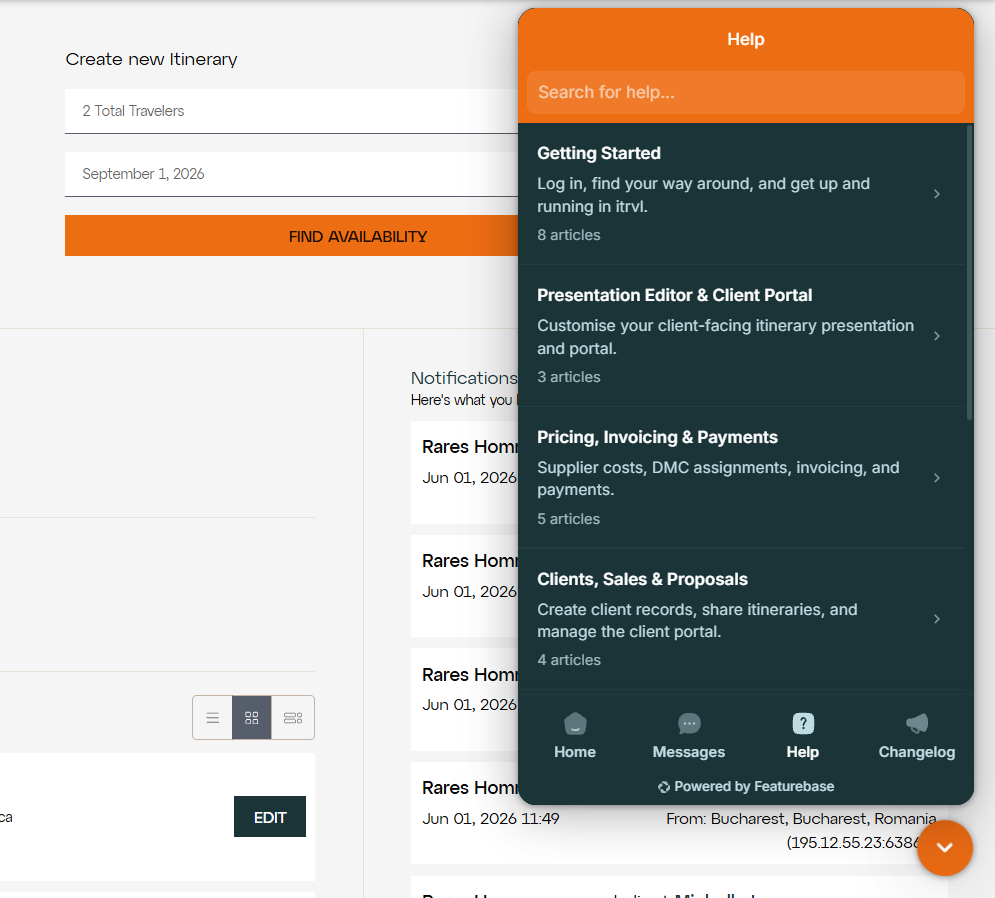
Type a question or keyword into the search bar to find relevant articles. The search understands natural language, so you can type things like "how do I add flights" or "change my margin" and it will surface the right content.
Changelog
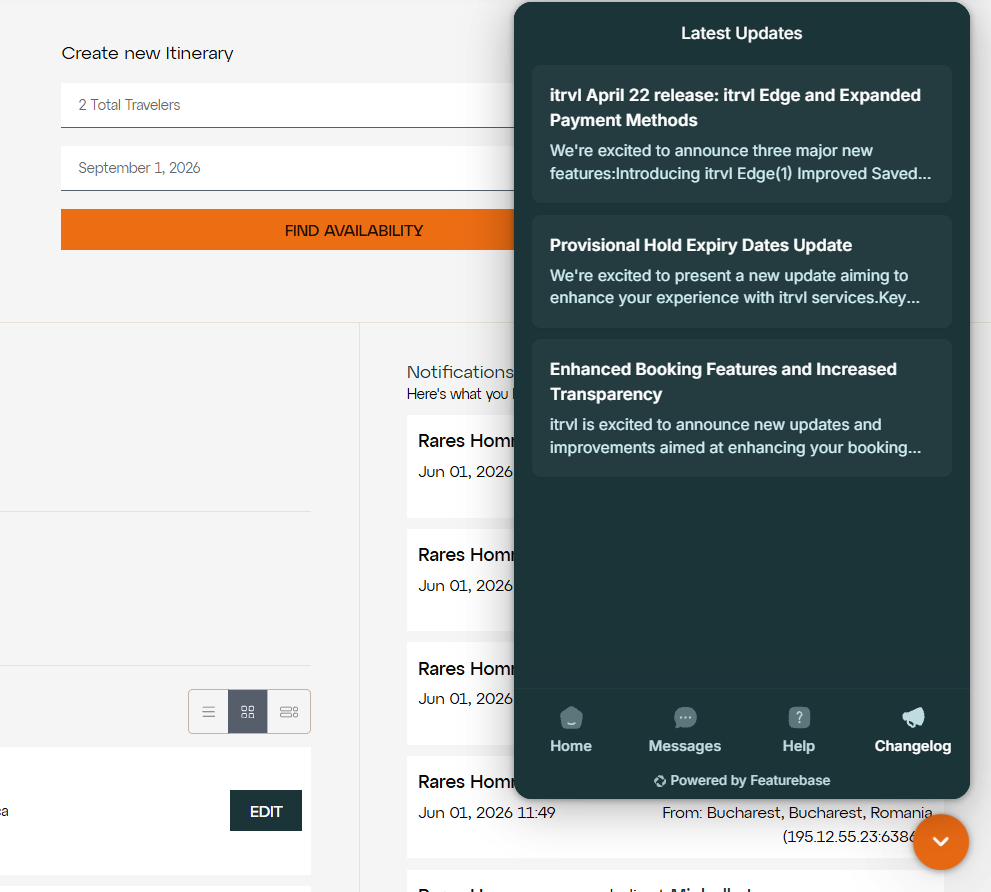
Click the Changelog tab to see the latest itrvl product updates, new features, improvements, and fixes. This is where the itrvl team posts announcements about what has changed in the platform.
Accessing the Help Center and Changelog Outside of itrvl
You can also access the Help Center and Changelog directly in your browser, without needing to be logged into itrvl:
Help Center: https://help.itrvl.com/
Changelog: https://feedback.staging.itrvl.com/changelog
The Help Center at help.itrvl.com contains the same articles available in the widget's Help tab, presented as a full browsable website. You can search, browse collections, and read articles at your own pace.
The Changelog page shows all product updates in a timeline format, so you can catch up on any changes you may have missed.
Tips and Important Notes
Tip: Trivi, itrvl's AI support agent, is your fastest path to answers. Trivi is trained on itrvl's full support knowledge base and can resolve most common questions instantly. Just open the Messages tab and type your question.
Tip: The Help Center search is AI-powered. You do not need to know the exact article title. Just describe what you are looking for in plain language and the search will find the most relevant articles.
Tip: If Trivi cannot resolve your question, the conversation is automatically handed to the itrvl support team. You do not need to start a separate conversation or send an email.
Tip: Check the Changelog tab regularly to stay up to date on new features and improvements. Knowing about new capabilities can help you work more efficiently.
Important: The widget is available on every page inside itrvl. You do not need to navigate to a specific section to access it.
Related Articles
Should you notice any issues in this process, please reach out to itrvl support.