How to use the Help Center and contact itrvl support
Get help inside itrvl with the support widget, search the Help Center, follow product updates and reach the itrvl support team.
Written By Itrvl Team
Last updated 2 days ago
Summary: The fastest way to get help is the support widget inside itrvl: ask a question, get an instant answer, and the itrvl support team picks up anything the answer does not solve in the same conversation. The widget also holds the full Help Center and the product changelog. This guide is for everyone who uses itrvl.
Also known as: contact support, who to contact, get help, support chat, help widget, chat bubble, report a problem, help center, knowledge base, changelog
Prerequisites
You are logged in to itrvl (the support widget only appears once you are logged in)
Asking a question in the support widget
Click the chat bubble in the bottom right corner of any itrvl page to open the support widget.
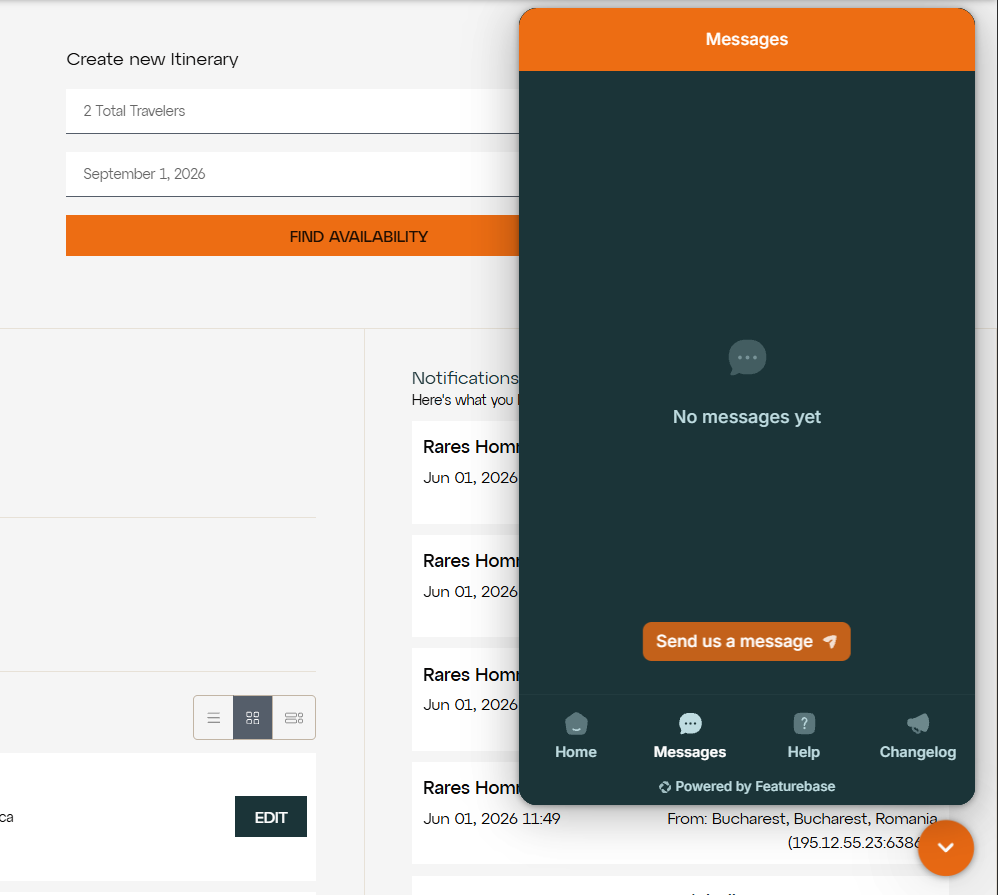
The widget opens on the Home tab. Click the Messages tab to see your support conversations.
Click New Message and type your question. Include the booking number and what you expected to happen, so nobody needs to ask you again.
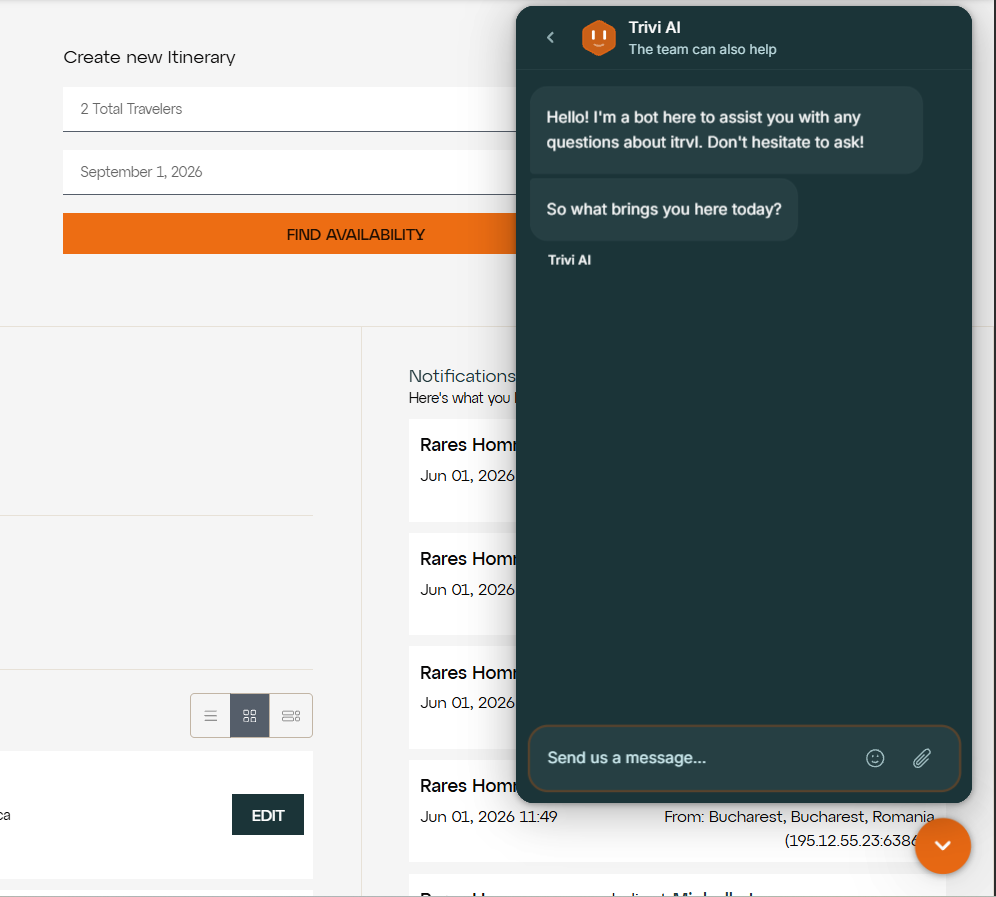
Trivi, itrvl's AI assistant, replies first, using the Help Center articles and product updates. Most how-to questions are answered straight away.
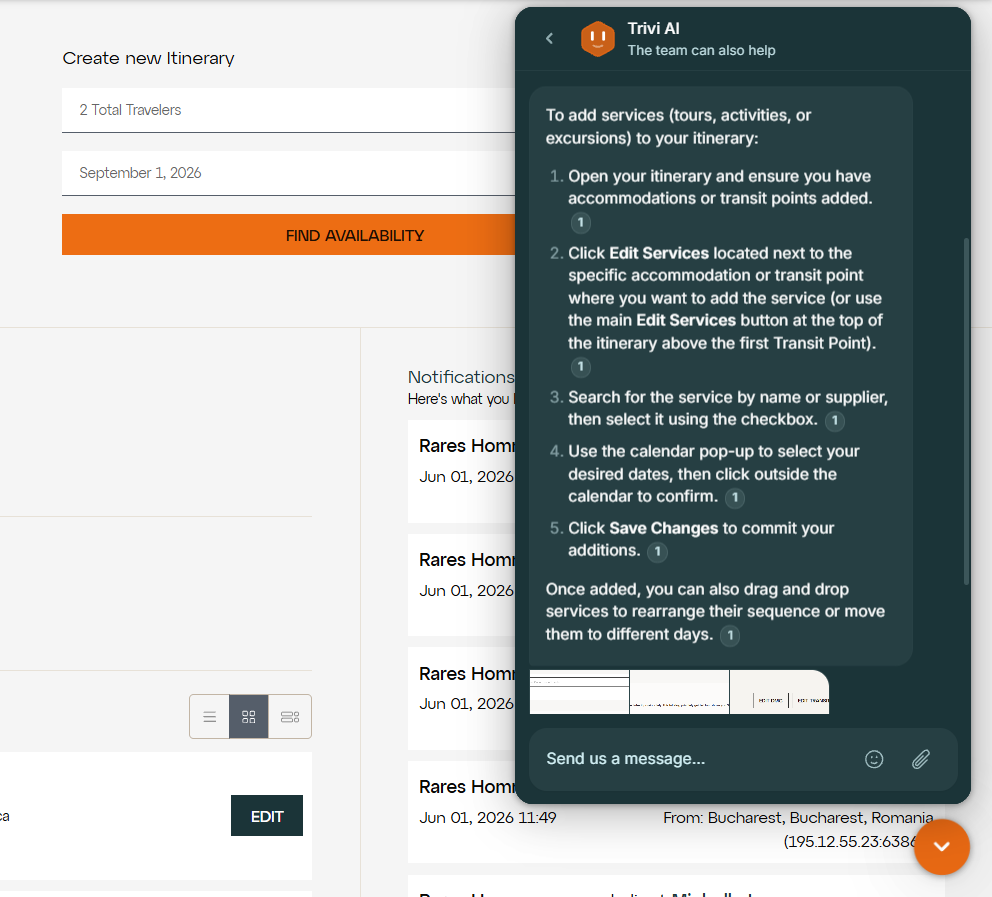
If the answer does not solve your problem, say so in the conversation. It is handed to the itrvl support team, who reply in the same thread. You do not need to send an email as well.
Come back to the Messages tab at any time to read replies or continue a conversation. When a reply is waiting, the browser tab title shows the number of unread messages.
Searching the Help Center
Click the Help tab to browse the Help Center without leaving itrvl.
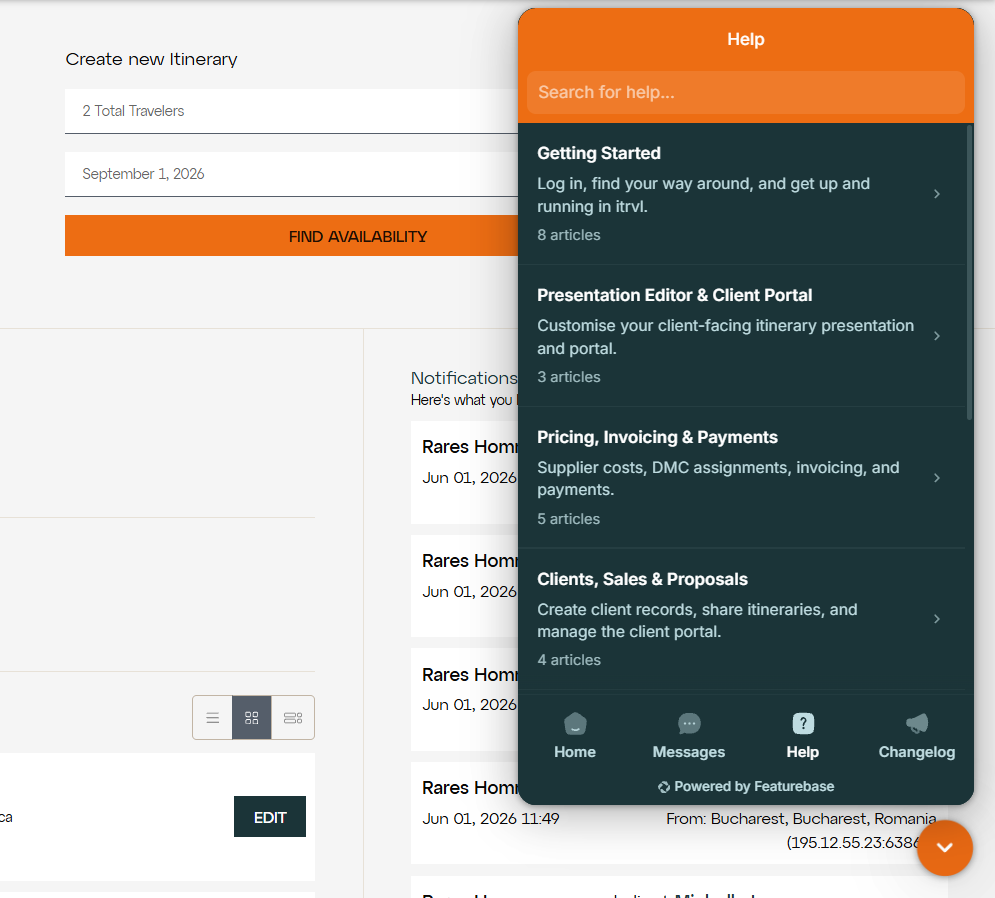
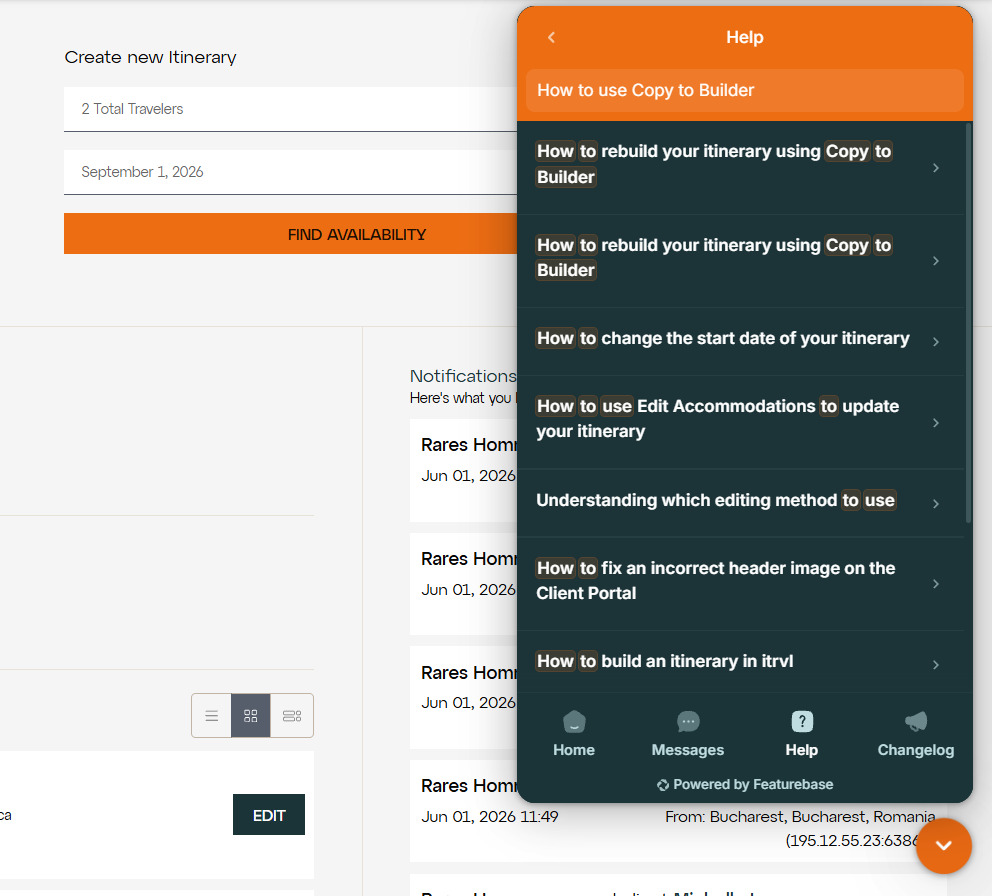
Type a question or a few keywords in the search bar, such as "change my margin" or "add flights". You do not need the exact article title.
Following product updates
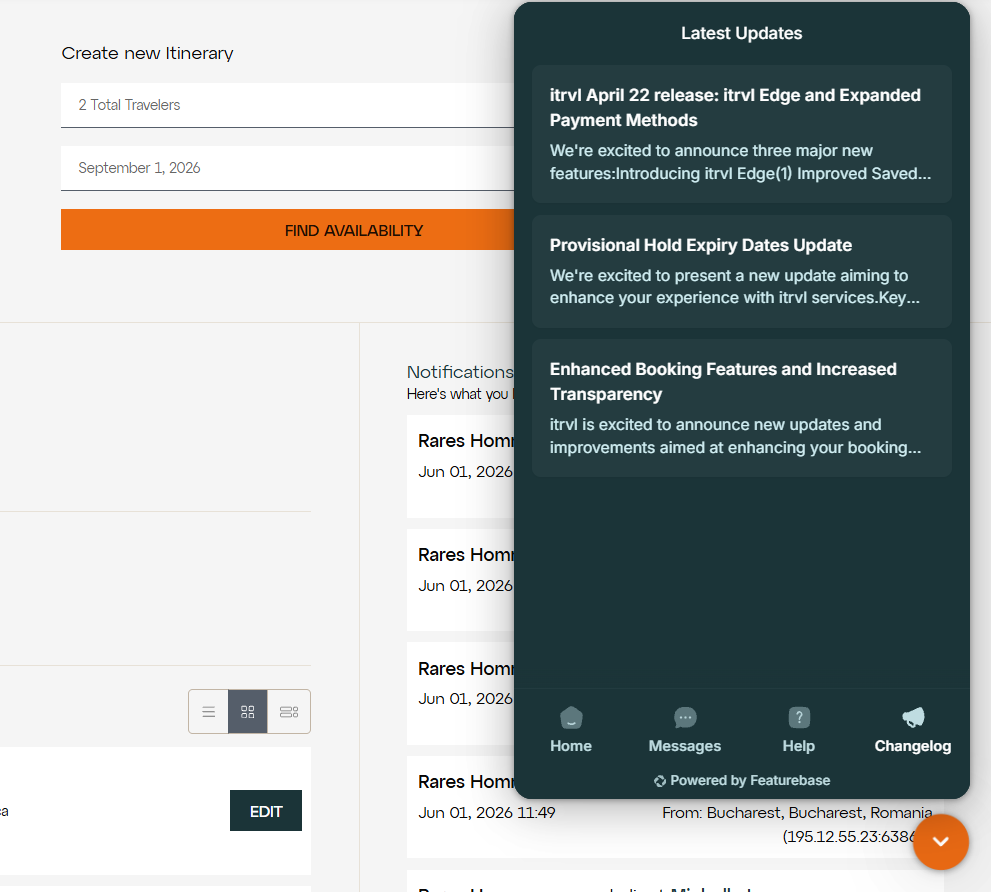
Click the Changelog tab to read about new features, improvements and fixes.
Other ways to get help
Help Center in your browser: help.itrvl.com opens the same Help Center in a full browser tab.
Changelog in your browser: feedback.itrvl.com/changelog lists every product update.
Shared channel: if your agency has a shared Slack or Microsoft Teams channel with the itrvl team, you can also ask quick questions there.
Wrong rate or content on a line: on Africa itineraries, use Submit Feedback on that line instead, so the report reaches the right team with the details attached. See How to send rate and content feedback on an itinerary line.
Tips & Important Notes
Give the details up front. Include the booking number, the client name, what you did and what you expected. A screenshot helps too. This is the quickest way to a fix.
Use the widget or Slack, not email. There is no support email address. Reach itrvl support through the support widget or Slack. Messages sent through the widget reach the whole support team and stay in one thread, so nothing is lost when someone is away.
Search in itrvl links here too. If the search at the top of itrvl finds no match, the Need some help? link opens this Help Center.
Related Articles
Should you notice any issues in this process, please reach out to itrvl support.
Was this helpful?
Still need help? Ask the team